![Main Logo - Colorful.svg]](https://help.nomoq.com/hubfs/Main%20Logo%20-%20Colorful.svg)
Why use a Reference Sample?
- Colour Consistency: Ensure recurring colours or finishes match perfectly across your entire product line.
- Faster Processing: Clear references allow our team to prepare your print files faster with fewer back-and-forth questions.
- Seamless Series Creation: Ideal for seasonal brews, brand extensions, or recurring designs that share common visual elements.
Step-by-Step Guide
Step 1: Click "ADD A REFERENCE SAMPLE"
While requesting a new sample on the platform, locate the ADD A REFERENCE SAMPLE box and click the green + button.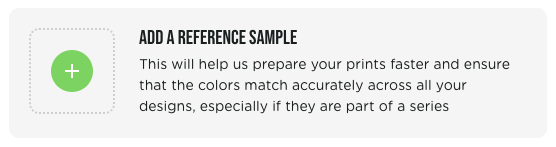
Step 2: Select Your Approved Variant
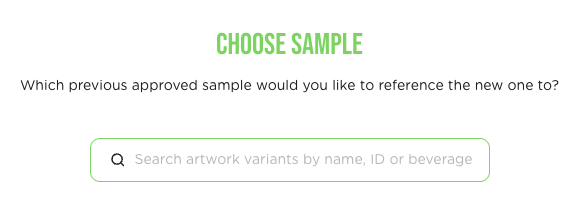
A pop-up window titled "CHOOSE SAMPLE" will appear.
- Use the search bar to find your previously approved sample by Name, ID, or Beverage.
- Select the correct variant from the list. Only Samples uploaded with your User-ID will appear in the list.
- Click Confirm.
Step 3: Tell Us What to Match
Once selected, your reference sample will be linked to the request showing its thumbnail, ID, and finish details (e.g., Matte + Metallic + Glossy).
In the field labeled "Describe your wishes here"*, give us a short description of what should be matched.
Examples:Need Help?
"Please match the background gold metallic effect exactly to this reference sample."
"Ensure the black matte intensity on the new design matches this previous variant."
If you're unsure which variant to reference or have specific design questions before placing your request, feel free to reach out to us – we’re happy to help!